
English
Features & TV Mode
1. Adaptive Zero-Scroll Wallboard
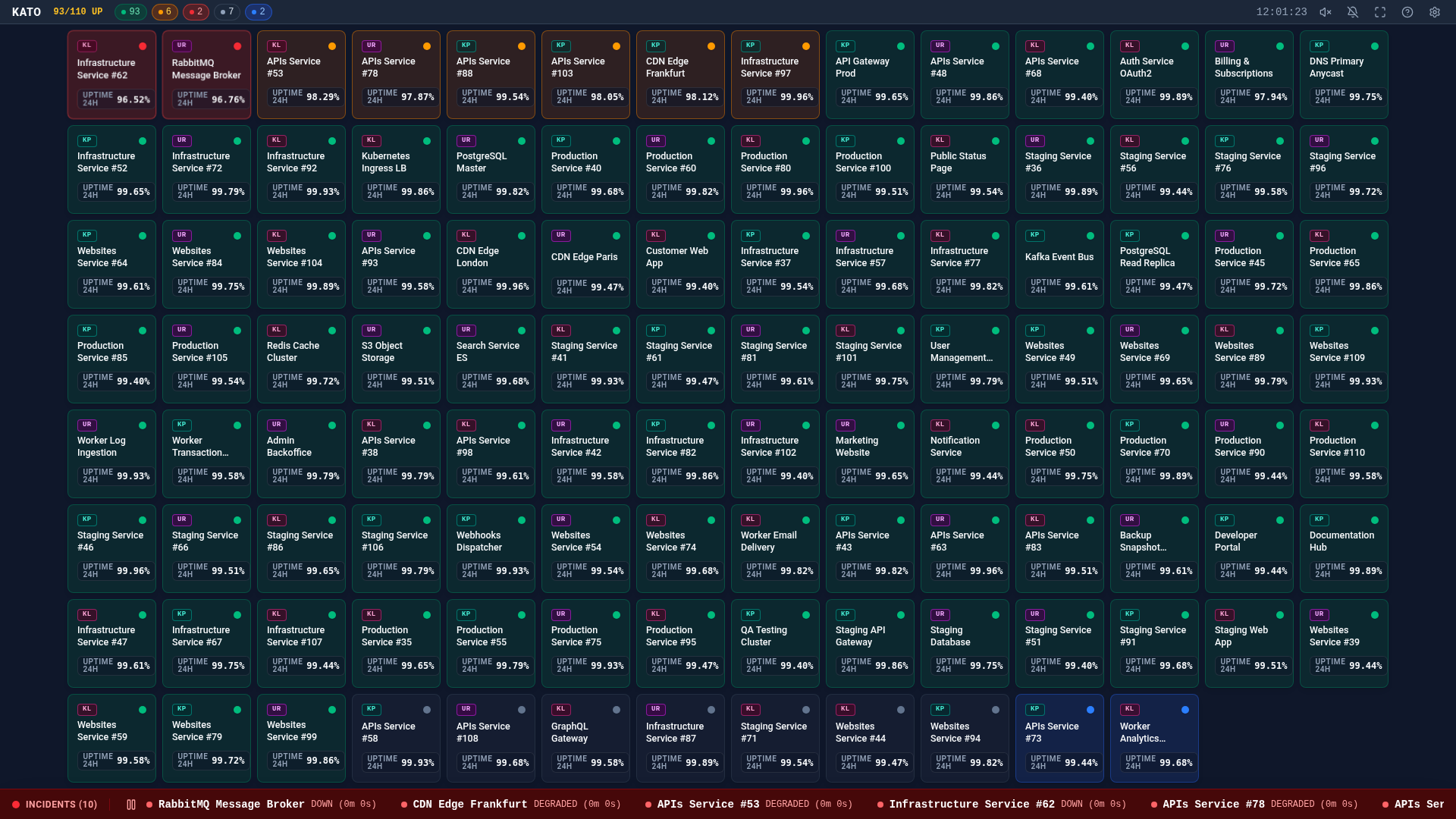
Kato automatically adjusts card sizes and grid layout so all your monitors fit inside a single screen without vertical or horizontal scrolling — whether you monitor 10 services or 150+.
2. TV & Wallboard Mode (?tv=1)
Append ?tv=1 to your dashboard URL (http://localhost:3000/?tv=1) for unattended wall displays:
- Auto-Fullscreen: Enters fullscreen and re-activates after 30 seconds of inactivity.
- Cursor Auto-Hide: Hides the mouse pointer after 5 seconds of inactivity.
- Anti Burn-In Protection: Subtle periodic pixel shift to protect OLED and AMOLED screens.
- Wake Lock: Prevents the screen or TV from going to sleep.
- Live Incident Ticker: Continuous scrolling banner at the bottom of the screen when outages occur.
3. Installable Web App (PWA) & Auto-Start
You can install Kato as a standalone desktop or mobile application:
- Click the Install icon in the top bar (or open Settings ⚙️ → Application (PWA)).
- On Chrome, Edge, or Brave, open
chrome://apps(oredge://apps), right-click Kato Dashboard, and enable Start app when you sign in to launch your wallboard automatically on startup.
4. Desktop & Sound Alerts
- Desktop Notifications (
N): Receive native OS notifications when monitors go down or recover. - Sound Alerts (
M): Built-in audio chimes for new outages, simultaneous mass outages, and service recoveries.
5. Privacy / Screenshot Mode (?anonymize=1)
Need to share a screenshot of your dashboard without exposing internal server names or URLs?
- Open Settings ⚙️ → Display → Privacy Mode (Screenshot) (or add
?anonymize=1to the URL). - Kato replaces monitor names, URLs, and groups with generic infrastructure names while keeping your real statuses, latencies, uptimes, and source badges.
6. Keyboard Shortcuts
| Key | Action |
|---|---|
Arrow Keys / Home / End | Navigate across monitors in the grid |
Enter / Space | Open 24-hour detail & outage history panel |
F | Toggle fullscreen |
M | Toggle sound alerts |
N | Toggle desktop notifications |
T | Cycle color themes (Dark → Light → AMOLED) |
P | Pause / resume the bottom incident ticker |
? | Open the Help & Shortcuts window |
Escape | Close active window / exit TV mode |